Widget Guide

Add a widget.
See what matters.

DayCount widgets put your most important dates front and centre, live on your Home Screen.

Download on the App Store

On your Home Screen
in four taps.

Any size. Any event. Exactly where you want it.

1

Hold until it jiggles

Touch and hold any empty area on your Home Screen.

2

Tap +

Hit the Add button in the top-left corner.

3

Pick DayCount, pick a size

Small, medium, or large. Tap Add Widget.

4

Tap Done

Your widget is live.
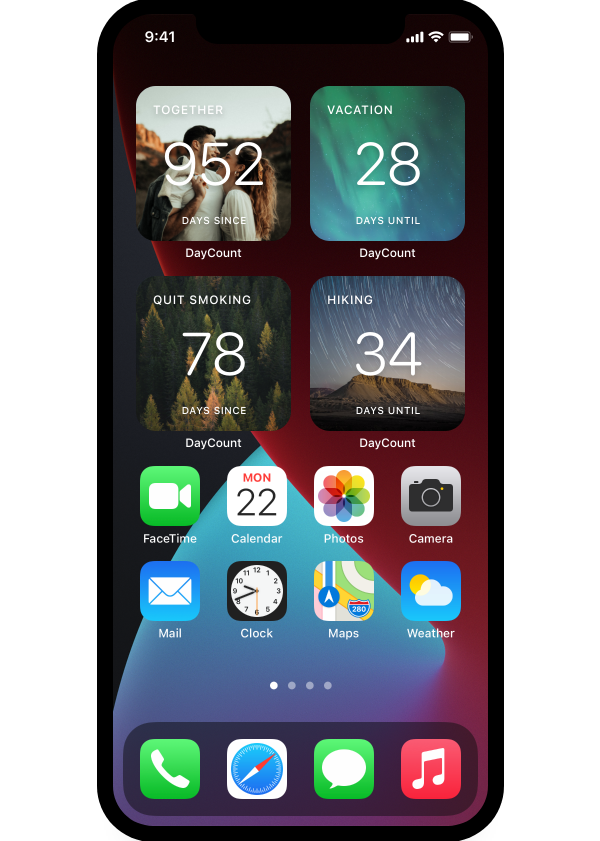
DayCount widgets on iPhone Home Screen
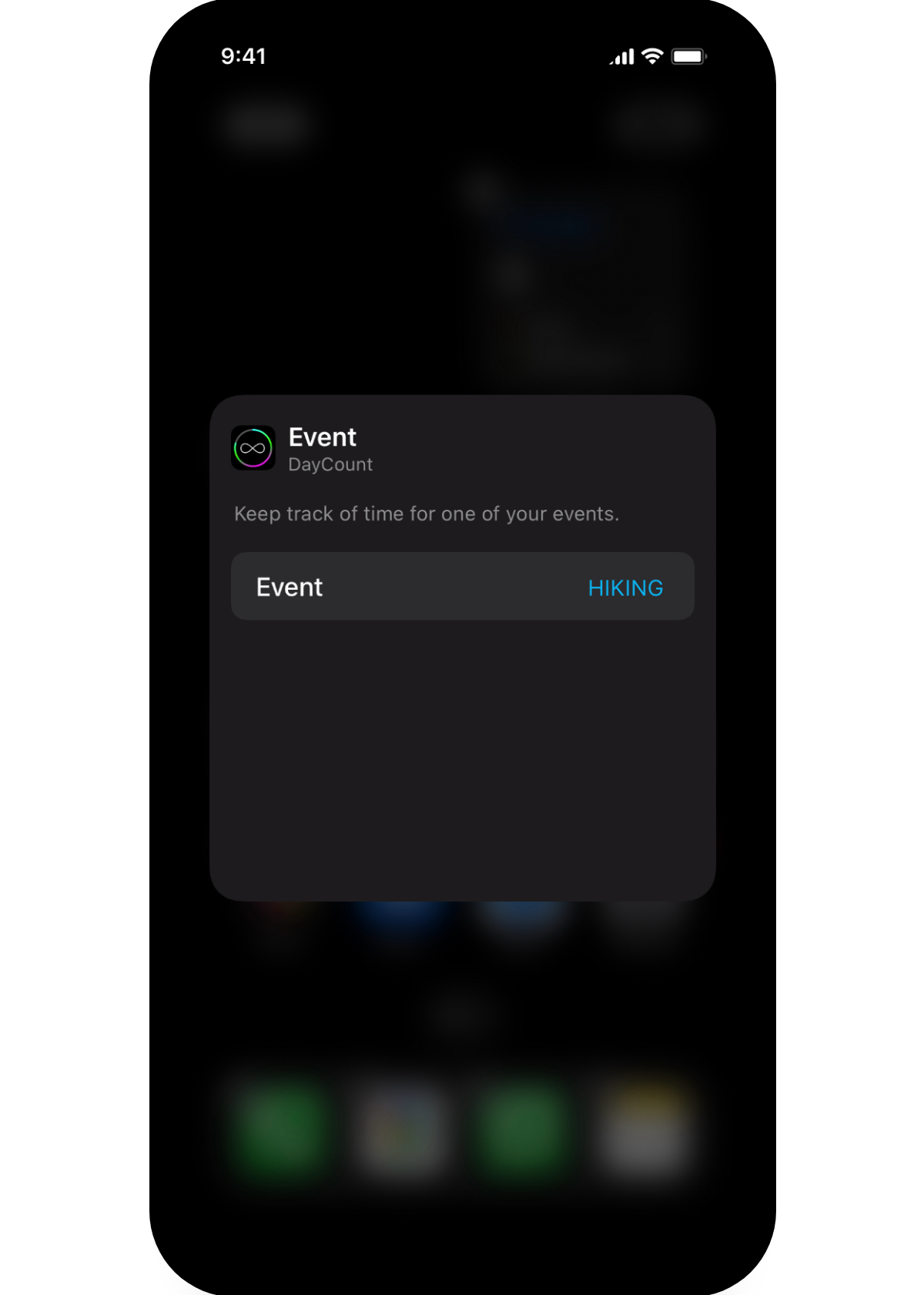
Editing a DayCount widget

Change what it shows
in seconds.

Swap events, update the look, done.

1

Hold the widget

Touch and hold a DayCount widget to open quick actions.

2

Tap Edit Widget

Select it from the menu.

3

Tap outside to save

Choose your event, then tap anywhere outside the widget to exit.

Pro tip: Hold and drag any widget to rearrange it on your Home Screen.

DayCount

Ready to track what matters?

Free to download on iPhone, iPad, and Mac.

Download on the App Store